How to Install CentOS 7 Step by Step with Screenshots

CentOS (Community Enterprise Operating System) is forked from RedHat Linux, a Linux Distro fine-tuned for servers. Finally, the much awaited CentOS 7 is out.

Step 1: Download The ISO Image

To get a copy of CentOS 7 download from its source mirror. CentOS 7 is now shipping for 64 bit platforms, and currently there is no 32 bit ISO image. This is primarily due to the fact that most servers in production are 64 bit.

Step 2: Make A bootable Drive

After you have downloaded the ISO image, make a bootable USB drive. Since Centos 6.5, you can create usb drive bootable by simply transferring iso file to usb using dd command. As we found Unetbootin no longer works for CentOS 7.

# dd if=/iso/CentOS-7-x86_64-DVD-1602-99.iso of=/dev/sdb

* /dev/sdb is the usb device and make sure you have atleast 4.3 GB space.

Step 3: Begin Installation

Desktop Install to Hard Drive

To begin installation, click on the Install to Hard Drive icon on the desktop.

Step 4: Select Language And Keyboard

Select your preferred language as well as the Keyboard type you have. Take care not forget to choose the correct keyboard or else you will end up with a few scrambled keys.

Select Language

Step 5: Change The Installation Destination

By default the Anaconda installer will choose automatic partitioning for your hard disk. Click on the Installation Destination icon to change this to custom partitioning.

Automatic Partitioning
Configure Partitioning

Click on the hard drive you want to install CentOS 7 and under the Other Storage Options, choose I will configure partitioning then click Done.

Step 6: Select The Partitioning Scheme

Next select the partitioning scheme to use for the mount points. In this case choose Standard Partition.

Select Partitioning Scheme

Step 7: Create A Swap Space

Create Swap Space

You can create a swap space from one of the partitions and set the desired capacity, which is dependent on the RAM you have. Choose the File System for swap space as swap, and click on Reformat, though reformatting is optional. You can also name your swap space to whatever name you like but a name like swap is more descriptive.

Step 8: Create A Mount Point

The next step is to create a mount point where the root partition will be installed. Depending on your requirements you might need to put the boot, home and root partition on different mount points. For this case we shall have only one mount point /.

After this set the Label and Desired Capacity to whatever you wish. A rule of thumb is to use descriptive names for the Label especially if the computer is to be used by different system administrators.

Choose the file system as ext4 and click on reformat.

Create a Mount Point

Step 9: Accept Changes

Accept Changes

After completing Step 7 and Step 8 successfully click on Done button. A prompt window will appear with a summary of changes that will take place. If you are satisfied with them click Accept changes.

Step 10: Set Date And Time

Set Date and Time

Click on the clock icon under the localization menu and select a time zone from the map of the world, then click Done.

Step 11: Begin Installation

Begin Installation

Now after configuring the System and Localization settings you can click on the Begin Installation button.

configuration during installation

Installation will begin immediately and as it proceeds you need to set up a User account as well as the root password.

Step 12: Set Up Root Password

Click on the root password option and enter a password and confirmation of the same then click Done.

Set Up Root Password

Step 13: Create a User Account

Create a User Account

The next step is to create a user account. Enter the correct details and if this is the administrator account, tick Make this user administrator and Require a password to use this account for security purposes.

Step 14: Complete Installation

Installing Bootloader

The installer should complete installing the software and the bootloader. Have a look on how to Set Linux Grub Password with Examples.

Once complete you should get a success message, after which you can click quit.
Logout from the Live system and login to your new installation.

Complete Installation

Finally once you login to your CentOS 7 accept the EULA agreement and enjoy!

New Features in CentOS 7

The following are some of the notable feature in CentOS 7:

Gnome 3 Desktop Environment

CentOS 7 comes with Gnome 3 which is very convenient when you have a touch screen.

gnome 3 Desktop

It also comes with Gnome Classic for those that want the look and feel of Gnome 2.

gnome classic

CentOS 7 comes with GRUB 2 which solves dual booting problems with other Linux distros that have been using GRUB 2, like Ubuntu. This is an improvement from CentOS 6.5 which used GRUB Legacy and was a problem when dual booting. Now you can do your installation without concerns of GRUB issues.

CentOS 7 has support for the xfs file system which is suitable especially in a distributed type of environment. XFS is known for its ability to handle parallel I/O compared to ext4.

CentOS 7 will also be shipping with MariaDB, a replacement for MySQL.

Conclusion

CentOS 7 has greatly improved from version 6.5 and now is easier to adopt it as a Desktop OS compared to its predecessor. For those that probably cannot keep up with Fedora releases every 6 months, CentOS 7 is a good consideration. Try it out today!
Ubuntu 18.04 LTS Desktop Installation Guide

Good News for Ubuntu fans ,after all the wait canonical has released its latest and stable version of Ubuntu 18.04 LTS on 26th April 2018. Code name for this release is “Bionic Beaver” and it has come up with various interesting features. In this article, we will be looking about how to install Ubuntu 18.04 LTS in a desktop with screenshots.

Ubuntu 18.04 LTS – New Features:

Ubuntu 18.04 LTS has been released with a lot of new features and improvements, some of the important features are listed below:

  • Support and Updates of Ubuntu 18.04 LTS for next 5 Years (April 2023)
  • New latest and stable Linux Kernel version 4.15
  • Installer offer a new option of “minimal Installation”
  • Updated LibreOffice 6.0
  • The Bionic Beaver supports attractive and beautiful color emojis
  • 18.04 LTS also comes with a new Suru icon theme that will make your desktop much more colorful
  • Updated GNOME (3.28) desktop environment
  •  XORG is the new default display server and replaces Wayland
  • Fast and improved boot speed
  •  Along with other major improvements and bug fixes

Minimum System Requirement for Ubuntu 18.04 LTS (Desktop)

  • 2 GB RAM
  • Dual Core Processor (2 GH)
  • 25 GB free Hard disk space
  • Installer Media (DVD or USB)
  • (optional) Internet Connectivity if you are planning to download third party software and updates during the installation

Step-by-Step Guide to Install Ubuntu 18.04 LTS on your Laptop or Desktop

Step 1)   Download Ubuntu 18.04 LTS ISO File

Please make sure you have the latest version of Ubuntu 18.04 LTS, If not, please download the ISO file from the link here

https://www.ubuntu.com/download/desktop

Since Ubuntu 18.04 LTS only comes in a 64-bit edition, so you can install it on a system that supports 64-bit architecture.

Step 2) Create a Bootable Disk

Once the ISO file is downloaded then next step is to burn the downloaded ISO image into the USB/DVD or flash drive to boot the computer from that drive.

Also make sure you change the boot sequence so that system boots using the bootable CD/DVD or flash drive.

Step 3) Boot from USB/DVD or Flash Drive

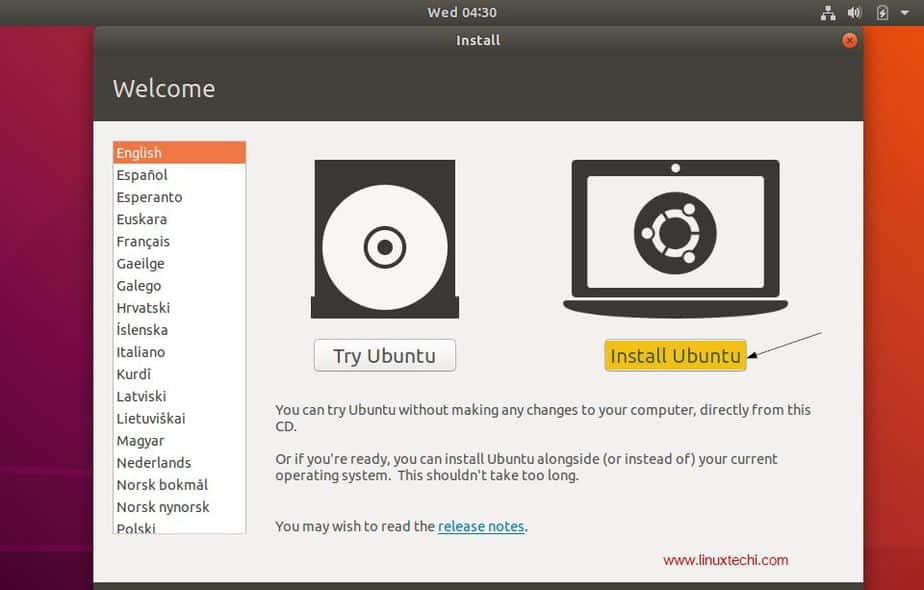
Once the system is booted using the bootable disk, you can see the following screen presented before you with options including “Try Ubuntu” and “Install Ubuntu” as shown in the image below,

Install-Ubuntu18-04-option

Even though when you click “Try Ubuntu” you can have a sneak peek into the 18.04 LTS without installing it in your system, our goal here is to install Ubuntu 18.04 LTS in your system. So click “Install Ubuntu” to continue with the installation process.

Step 4) Choose your Keyboard layout

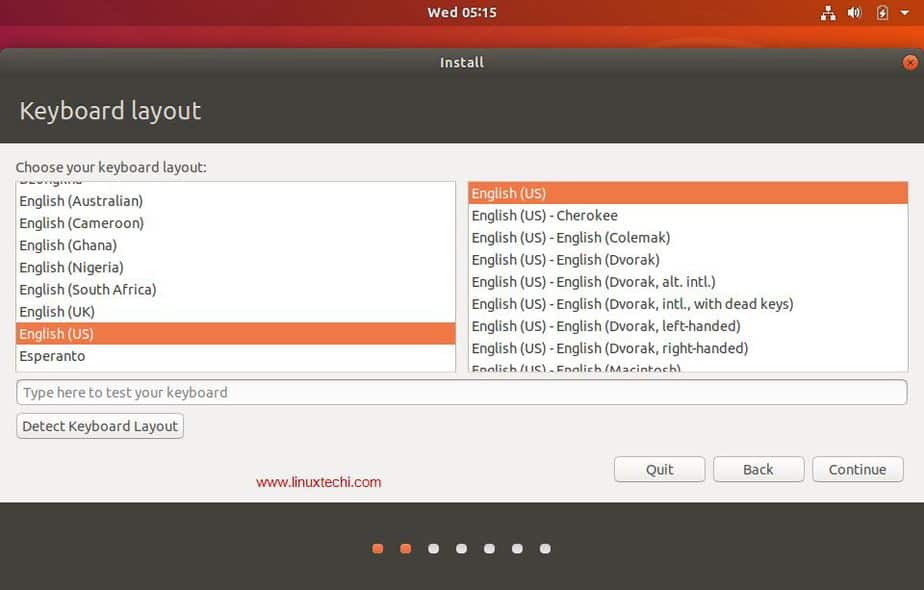
Choose your favorite keyboard layout and click “Continue”. By default English (US) keyboard is selected and if you want to change, you can change here and click “Continue”,

Keyboard-Layout-Ubuntu18-04

Step 5) Preparing to Install Ubuntu and other Software

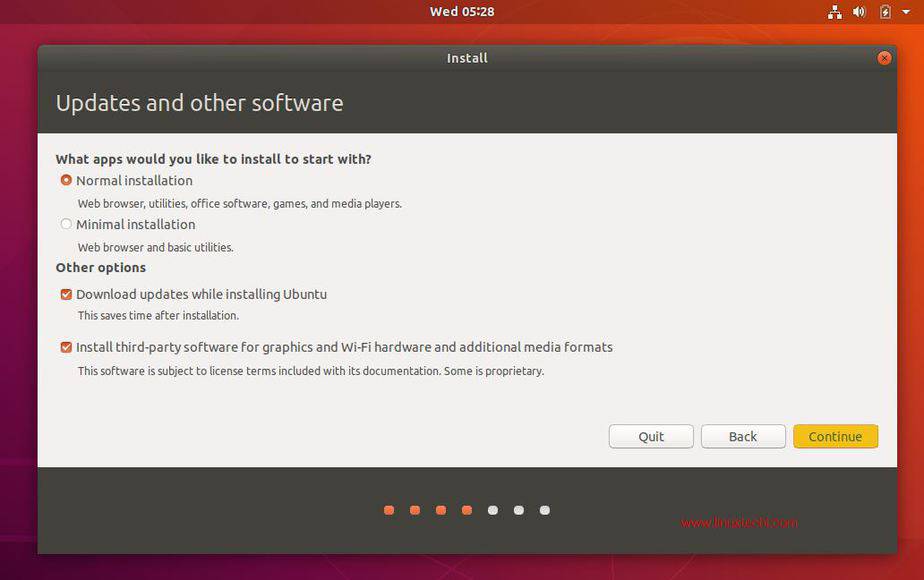
In the next screen, you’ll be provided following beneath options including:

  • Type of Installation: Normal Installation or Minimal installation, If you want a minimal installation then select second option otherwise go for the Normal Installation. In my case I am doing Normal Installation
  • Download Updates While Installing Ubuntu (select this option if your system has internet connectivity during installation)
  • Install third party software for graphics and Wi-Fi hardware, MP3 and additional media formats  Select this option if your system has internet connectivity)
Update-other-Software-Ubuntu18-04

click on “Continue” to proceed with installation

Step 6) Select the appropriate Installation Type

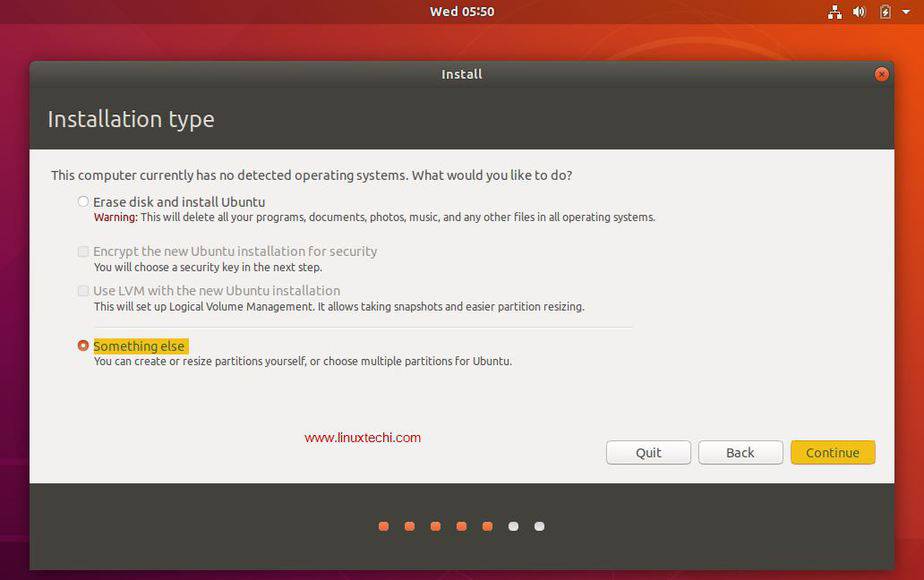
Next the installer presents you with the following installation options including:

  • Erase Disk and Install Ubuntu
  • Encrypt the new Ubuntu installation for security
  • Use LVM with the new Ubuntu installation
  • Something Else

Where,

Erase Disk and Install Ubuntu – Choose this option if your system is going to have only Ubuntu and erasing anything other than that is not a problem. This ensures a fresh copy of Ubuntu 18.04 LTS is installed in your system.

Encrypt the new Ubuntu installation for security – Choose this option if you are looking for extended security for your disks as your disks will be completely encrypted. If you are beginner, then it is better not to worry about this option.

Use LVM with the new Ubuntu installation – Choose this option if you want to use LVM based file systems.

Something Else – Choose this option if you are advanced user and you want to manually create your own partitions and want to install Ubuntu along with existing OS (May be Windows or other Linux Flavor)

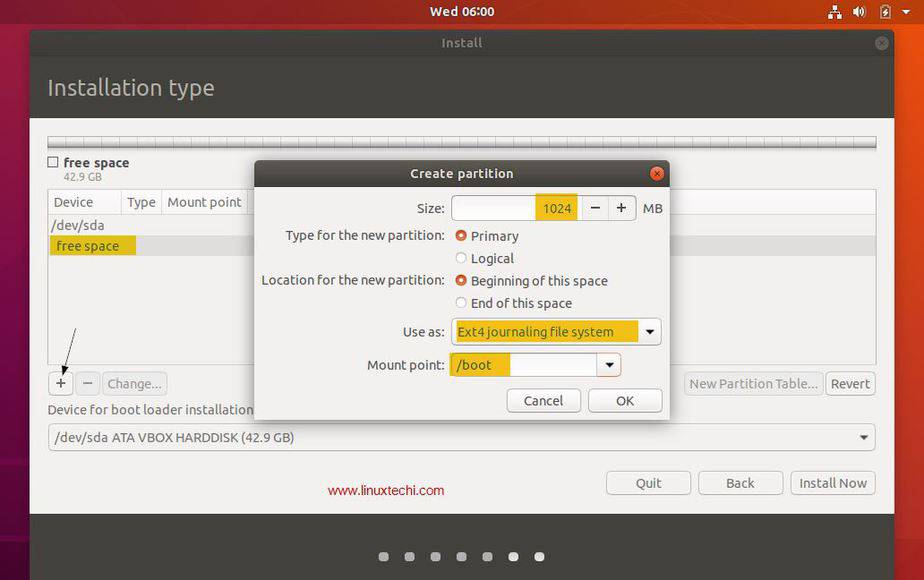
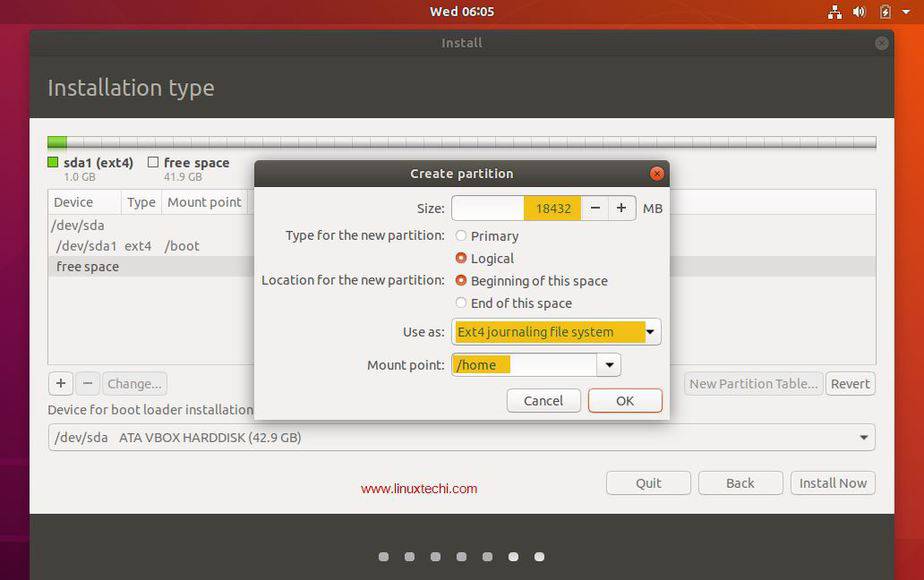
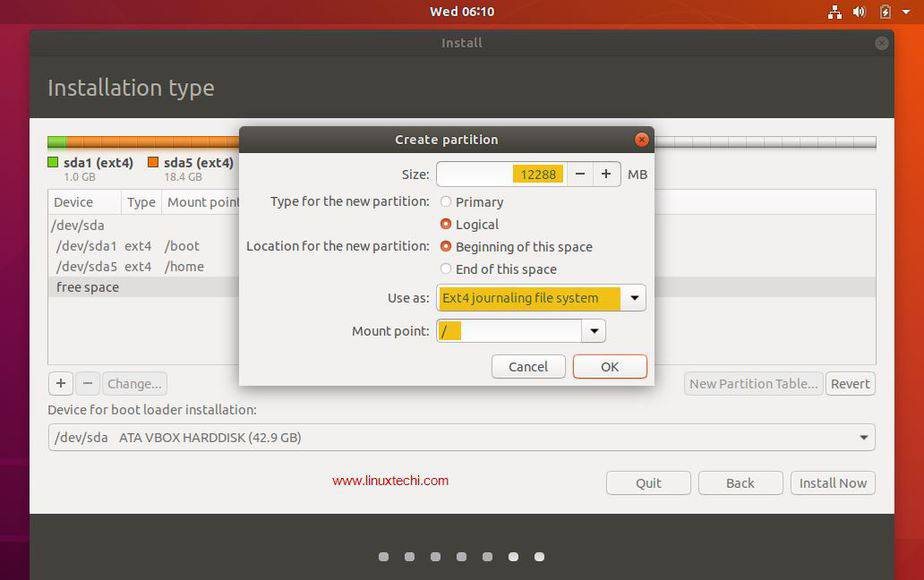
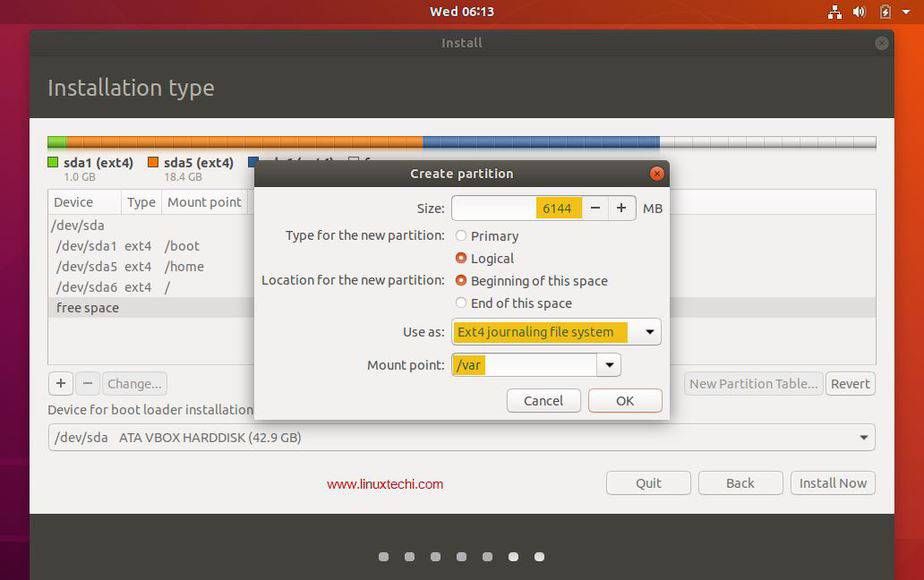
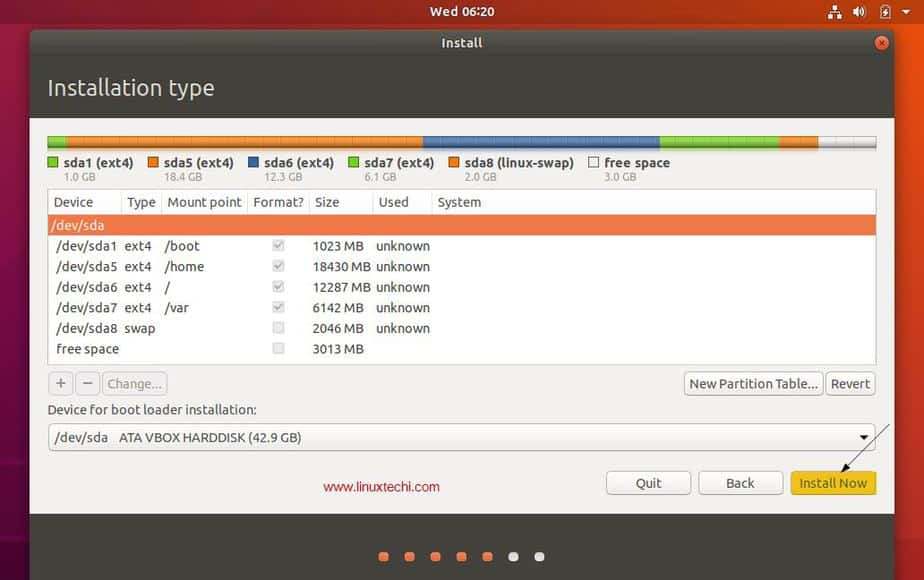
In this article, we will be creating our custom partitions on a hard disk of 40 GB and the following partitions are to be created:

  •     /boot           1 GB (ext4 files system)
  •     /home         18 GB (ext4 file system)
  •     /                  12 GB (ext4 file system)
  •     /var             6 GB (ext4 file system)
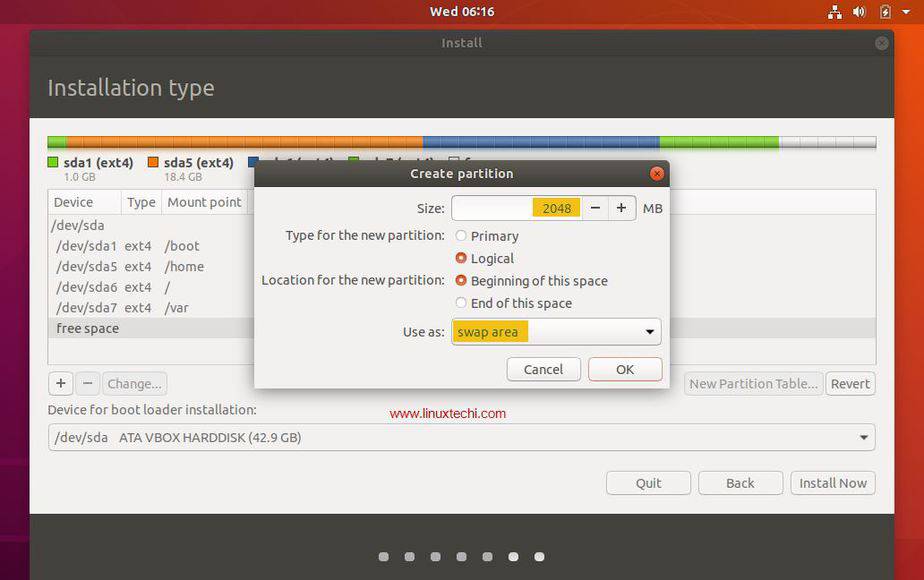
  •     Swap          2 GB
Installation-type-Ubuntu18-04

Now, Choose “Something Else” and Click on continue

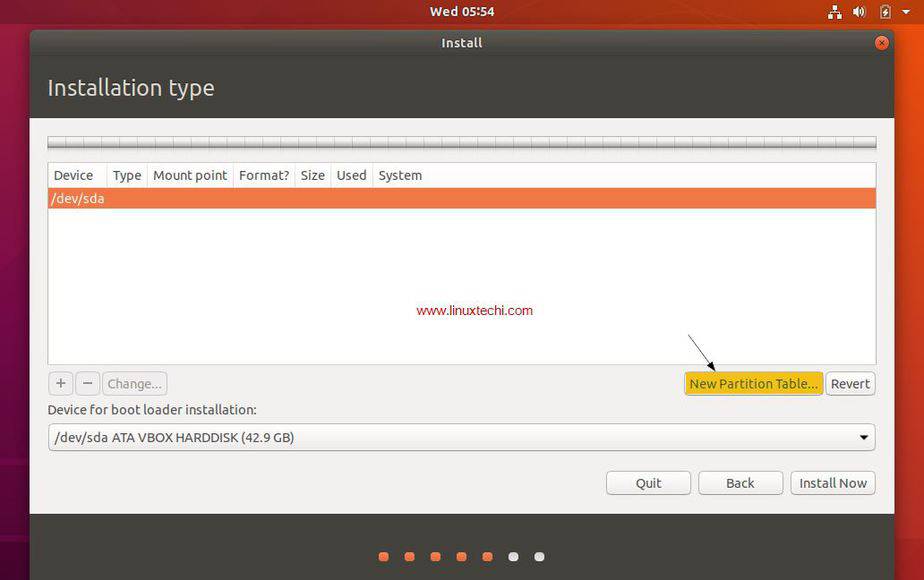
You can see the available disk size for Ubuntu in the next window as shown below:

Now in order to create your own partitions, click on “New Partition Table

create-new-partitiontable-ubuntu18-04
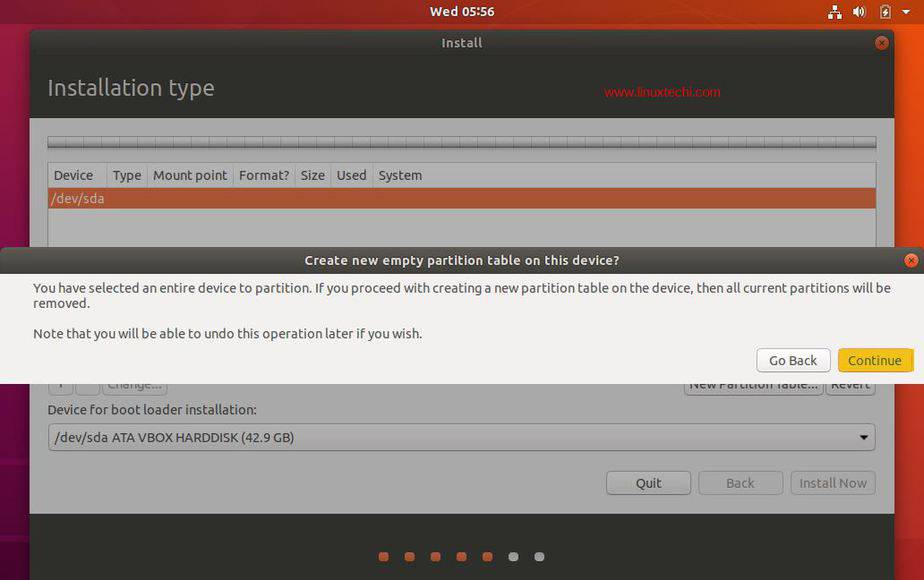
create-empty-partition-table-ubuntu18-04

Click on Continue

Create /boot partition of size 1GB, Select the free space and then Click on the “+” symbol to create a new partition

create-boot-partition-ubuntu18-04

Click on “OK”

Let’s create /home partition of size 18 GB,

create-home-partition-ubuntu18-04

In the same way create / & /var file system of size 12 GB & 6 GB respectively

create-slash-root-partition-ubuntu18-04
Create-var-partition-ubuntu18-04

Now create last partition as swap of size 2 GB,

Create-Swap-Partition-Ubuntu18-04

Click on OK

Once you are done with the partition creation task , then click  on “Install Now” option to proceed with the installation

Install-Now-Option-Ubuntu18-04
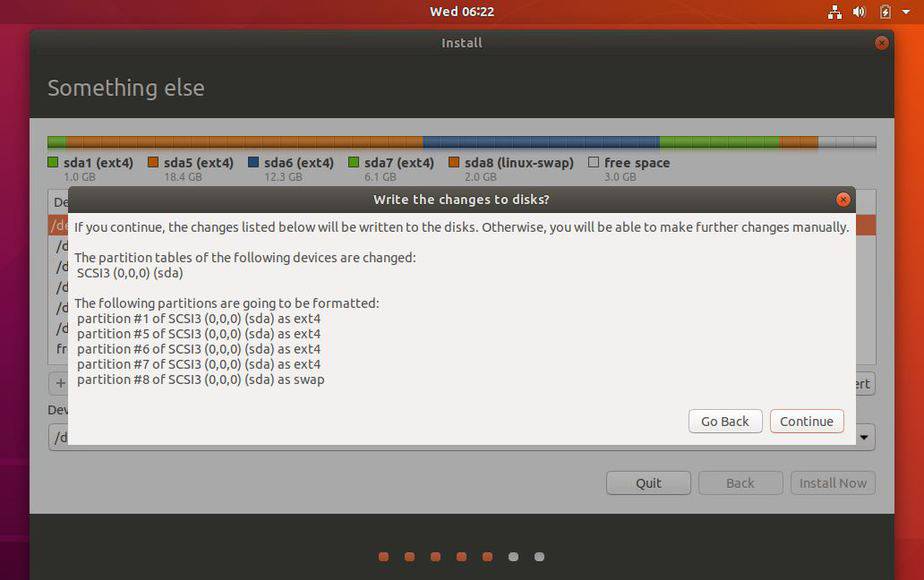
Write-Changes-disk-ubuntu18-04

Now click on “Continue” to write all the changes to the disks

Step 7) Select Your Time zone

Choose your favorite time zone and then click on “Continue”

Step 8) Provide your User Credentials

In the next screen you will be prompted to provide your user credentials. In this screen provide your name, computer name, username and the password to login into Ubuntu 18.04 LTS

Click “Continue” to begin the installation process.

Step 9) Start Installing Ubuntu 18.04 LTS

The installation of Ubuntu 18.04 LTS starts now and will take around 5-10 mins depending on the speed of your computer,

Step 10) Restart Your System

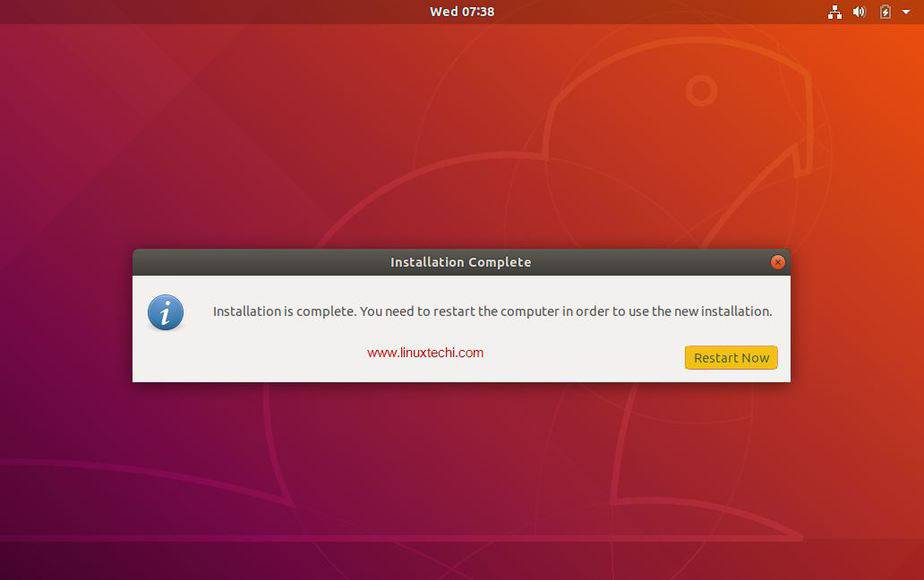
Once the installation is completed, remove the USB/DVD from the drive and Click “Restart Now” to restart your system.

Restart-after-ubuntu18-04-installation

Step:11) Login to Your Ubuntu 18.04 desktop

Once your system has been rebooted after the installation then you will get the beneath login screen, enter the User name and password that you have set during installation (Step 8)

And that concludes our step by step installation guide for Ubuntu 18.04 LTS and it’s all up to you now to explore the exciting features of Ubuntu 18.04 LTS and have fun 

How to Install Wine 4.0 on Ubuntu 18.04 & 16.04 LTS

Wine 4.0 Stable Released. Wine team has announced the latest stable release 4.0.1 on May 15, 2019. Its source code is available for download from its official site. You may also use the package manager to install wine. Wine is an Open Source implementation of the Windows API and will always be free software. Approximately half of the source code is written by its volunteers, and remaining effort sponsored by commercial interests, especially CodeWeavers.

winehq_logo_glass

This article will help you to install Wine 4.0 Stable Release on Ubuntu 18.10, 18.04 LTS & 16.04 LTS systems using the apt-get package manager.

Step 1 – Setup PPA

First of all, If you are running with 64-bit system enable 32-bit architecture. Also, install the key which was used to sign packages of wine.

sudo dpkg --add-architecture i386
wget -qO - https://dl.winehq.org/wine-builds/winehq.key | sudo apt-key add -

Use one of the following commands to enable Wine apt repository in your system based on your operating system and version.

###  Ubuntu 19.04 
sudo apt-add-repository 'deb https://dl.winehq.org/wine-builds/ubuntu/ disco main'

###  Ubuntu 18.04 
sudo apt-add-repository 'deb https://dl.winehq.org/wine-builds/ubuntu/ bionic main'

###  Ubuntu 16.04 
sudo apt-add-repository 'deb https://dl.winehq.org/wine-builds/ubuntu/ xenial main'

Step 2 – Install Wine on Ubuntu

Use below commands to install Wine packages from the apt repository. The –install-recommends option will install all the recommended packages by winehq stable versions on your Ubuntu system.

sudo apt-get update
sudo apt-get install --install-recommends winehq-stable

If you face unmet dependencies error during installation, use the following commands to install winehq using aptitude.

sudo apt-get install aptitude
sudo aptitude install winehq-stable

Step 3 – Check Wine Version

Wine installation successfully completed. Use the following command to check the version of wine installed on your system.

wine --version

wine-4.0.1

How to Use Wine (Optional)?

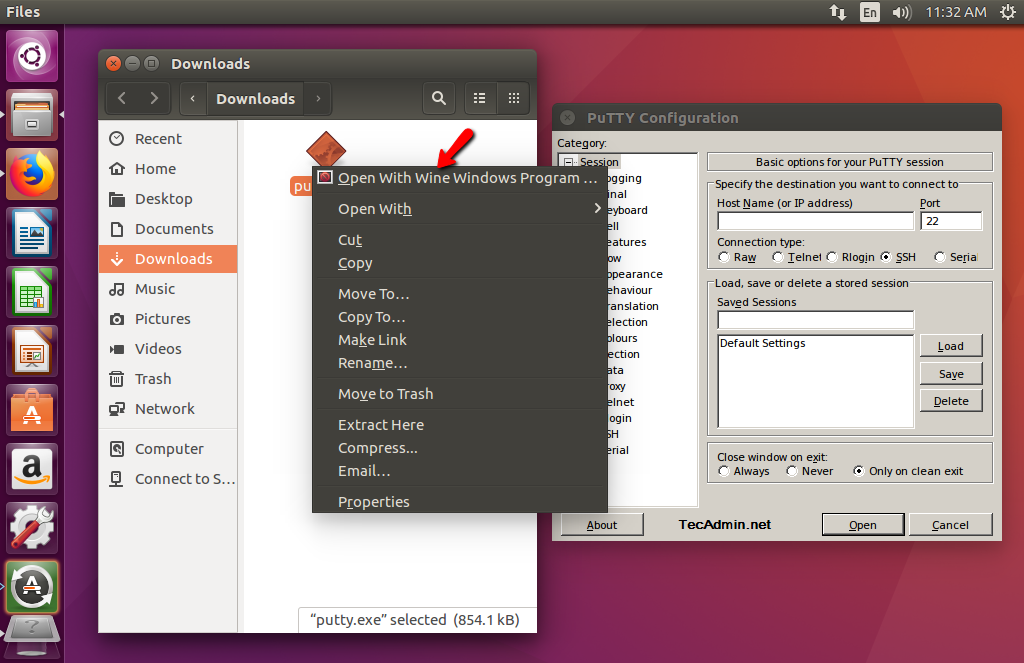
To use wine we need to login to the GUI desktop of your Ubuntu system. After that Download a windows .exe file like PuTTY on your system and open it with Wine as below screenshot or use following command.

wine putty.exe

You can also launch by right click on the application and click Open With Wine Windows Program as shown in below screenshot.

Install Wine on Ubuntu


Mengenal Distro Linux Dan Turunannya

Mengenal Macam-Macam Distro Linux dan Turunannya – Distro? apaan tuh? yang jual baju itu ya? ckkkkkk….bukan bro… di Linux, Distro Linux itu singkatan dari Distribusi Linux, adalah sebutan untuk sistem operasi komputer dan aplikasinya, merupakan keluarga Unix yang menggunakan kernel Linux.
Distribusi Linux bisa berupa perangkat lunak bebas dan bisa juga berupa perangkat lunak komersial seperti Red Hat Enterprise, SuSE, dan lain-lain.

Ada banyak distribusi atau distro Linux yang telah muncul. Beberapa bertahan dan besar, bahkan sampai menghasilkan distro turunan, contohnya Distro Debian GNU/Linux. Distro ini telah menghasilkan puluhan distro anak, antara lain Ubuntu, Knoppix, Xandros, DSL, dan sebagainya.

Beberapa Contoh Distro Linux

1. Ubuntu

Ubuntu merupakan distro Linux yang paling populer diantara distro-distro lainnya. Sifatnya yang stabil serta user friendly membuatnya sangat diminati oleh publik. Ubuntu juga merupakan distro Linux yang paling cocok bagi pengguna awam yang baru belajar menggunakan Linux, karena memang distro inilah yang paling gampang pengoperasiannya. Dukungan komunitas yang besar membuat anda tidak akan pernah kehabisan tempat untuk bertanya.

2. Opensuse
Opensuse pertama kali dipublikasikan pada tahun 1992 oleh 4 orang maniak Linux berkebangsaan jerman. Project mereka diberikan nama SUSE yang merupakan kepanjangan dari (Software und System Entwicklung). Edisi yang tersedia saat ini adalah openSuse dan Suse Linux Enterprise.

3. Fedora

Fedora pertama kali dirilis pada tahun 1995, dikembangkan oleh 2 orang yang bernama Bob Young dan Marc Ewing dibawah nama perusahaan Red Hat Linux. Walaupun dirilis sudah sejak lama namun fedora baru mulai populer pada tahun 2004. Edisi yang tersedia dari distro ini adalah fedora dan Red Hat enterprise.

4. Debian
Debian GNU Linux pertama kali di publikasikan 1993. Pembuatnya adalah Ian Murdock. Debian GNU Linux merupakan sebuah project non-komersil yang dikembangkan secara bersama-sama oleh ratusan programmer diwaktu senggang mereka. Debian tumbuh menjadi distro yang besar dan populer, memiliki komunitas yang besar, serta menelurkan berbagai macam distro-distro turunan.

5. Mandriva
Mandriva linux pertama kali diluncurkan pada tahun 1998 oleh Gael Duval dibawah nama Mandrake Linux. Pada awalnya mandriva merupakan hasil olahan dari Red Hat dengan berbagai sentuhan tambahan, namun lambat laun mandriva memiliki fungsi-fungsi sendiri yang membuatnya lebih user friendly.

6. LinuxMint
LinuxMint yang merupakan distro berbasis ubuntu, pertama kali diluncurkan pada tahun 2006 oleh seorang kelahiran perancis yang bernama Clement Lefebvre.

7. PclinuxOS
Pertama kali diluncurkan pada tahun 2005 oleh Bill Reynolds atau lebih dikenal dengan julukan “texstar”. Sebelum Bill Reynolds menciptakan PclinuxOS, ternyata texstar adalah salah satu developer yang cukup terkenal dari Mandrake Linux. Edisi yang tersedia adalah MiniMe, Junior and BigDaddy.

8. Slackware
Distro yang diciptakan oleh Patrick Volkerding pada tahun 1992 ini, merupakan salah satu distro Linux lawas yang berhasil bertahan hingga kini dan bahkan menjadi salah satu distro yang paling populer.

9. Gentoo Linux
Gento disusun pada tahun 2000 oleh Daniel Robbins. Ide dasar dari distro ini adalah mengizinkan user untuk meng-compile sendiri source code dari Linux ataupun aplikasi program ke sistem milik mereka. Sebenarnya distro yang satu ini diperuntukkan bagi user-user level lanjut dengan jam terbang yang sudah tinggi.

10. Centos
Centos pertama kali dipublikasikan pada tahun 2003. Centos merupakan hasil re-build source code RedHat Enterprise Linux oleh sebuah komunitas. Tujuan distro ini adalah untuk menciptakan sebuah distro yang menyediakan update secara cepat.

Dan masih banyak lagi distro-distro yang lainnya seperti Sabily yang diperuntukkan bagi user muslim dan distro-distro lokal seperti Garuda OS.

Oke sekarang kita lanjut turunan dari distro distro linux

Distribusi bebas berbasis Debian

  • 64Studio
  • Adamantix
  • Amber Linux
  • BeatrIX
  • Bonzai Linux
  • Debian
  • Debian-BR-CDD
  • DeveLinux
  • Dreamlinux
  • Elive
  • Finnix
  • GenieOS
  • Gnoppix
  • gOS linux
  • Guadalinex
  • Hiweed
  • Kalango
  • Kanotix
  • Knoppix
  • Kuliax (sebuah distro Linux yang dikembangkan Indonesia)
  • Kurumin
  • LinEx
  • Loco Linux
  • MeNTOPPIX
  • Morphix
  • NepaLinux
  • PingOO
  • Skolelinux
  • Sun Wah RAYS LX
  • Symphony OS
  • Ubuntu
  • Gethux Linux (sebuah distro Linux yang dikembangkan Indonesia)
  • BlankOn Linux (sebuah distro Linux yang dikembangkan Indonesia)
  • Dewalinux (sebuah distro Linux yang dikembangkan Indonesia)
  • linux mint
  • Briker (sebuah distro Linux yang dikembangkan Indonesia)
  • Edubuntu
  • Kubuntu
  • Xubuntu
  • De2
  • Xandros
  • Zen Linux

Distribusi berbasiskan RPM

  • aLinux
  • ALT Linux
  • Annvix
  • Ark Linux
  • ASPLinux
  • Aurox
  • Berry Linux
  • BLAG Linux and GNU
  • BlankOn versi pertama (sebuah distro Linux yang dikembangkan Indonesia)
  • Caixa Mágica
  • cAos Linux
  • CentOS
  • Cobind
  • Conectiva
  • EduLinux
  • Engarde Secure Linux
  • Fox Linux
  • IGOS Nusantara (sebuah distro linux yang dikembangkan Indonesia)
  • Linux Mobile System
  • Magic Linux
  • Mandriva Linux (dahulu bernama Mandrake Linux)
  • NOPPENLINUX
  • PCLinuxOS
  • PCQLinux2005
  • PLD Linux Distribution
  • QiLinux
  • Red Hat Linux:
  • Fedora Core
  • Red Flag Linux
  • Scientific Linux
  • Vine Linux
  • White Box Enterprise Linux
  • Yellow Dog Linux
  • Sesco Linux
  • SUSE Linux
  • Tinfoil Hat Linux
  • Trustix
  • Ulteo
  • YOPER (“Your Operating System”)

Distribusi bebas berbasis Slackware

  • AliXe
  • Austrumi
  • BackTrack
  • Bluewhite64 Linux
  • CD Forum Linux (sebuah distro Linux yang dikembangkan Indonesia)
  • College Linux
  • Cytrun Linux
  • DARKSTAR
  • DeepStyle
  • easys GNU/Linux
  • Frugalware
  • Hardened Linux
  • Kate OS
  • MooLux
  • Plamo Linux
  • SLAX
  • Sauver
  • Singkong Linux (sebuah distro Linux yang dikembangkan Indonesia)
  • Slackintosh
  • Slackware
  • Slamd64
  • Splack Linux
  • targeT Linux (sebuah distro Linux yang dikembangkan Indonesia)
  • Topologi Linux
  • Truva Linux
  • Ultima Linux
  • Vector Linux
  • Wolvix
  • 0x7F GNU/Linux
  • ZenCafe Linux (sebuah distro Linux yang dikembangkan Indonesia)
  • Zenwalk Linux (dulu MiniSlack)

Distribusi bebas berbasis lainnya

Distribusi ini menggunakan sistem manajemen paket sendiri atau gabungan, dan adayang tidak menggunakan manajemen paket.

  • Arch Linux (dengan sistem manajemen paket Pacman)
  • Coyote Linux (distro Router/firewall)
  • CRUX (menggunakan manajemen paket berbasis tar.gz yang sederhana, BSD-style initscripts)
  • DD-WRT (embedded firewall)
  • DeLi Linux (kombinasi Slackware dan CRUX)
  • Devil-Linux (distro firewall/router/server)
  • DSLinux (Linux untuk Nintendo DS)
  • dyne:bolic (instalasi software baru cukup dengan menyalin [copy] ke direktori tertentu)
  • Familiar Linux (distro untuk iPAQ handhelds)
  • Fli4l (distro yang muat dalam satu floppy disk)
  • Foresight Linux (menggunakan sistem manajemen paket Conary)
  • FREESCO (router)
  • GeeXboX (media center)
  • GoboLinux (manajemen paket sendiri yang menggunakan symlink)
  • Hikarunix (distro khusus untuk main Go)
  • IPCop (distro Router/firewall)
  • iPodLinux (linux untuk Apple iPod berbasis µCLinux kernel)
  • Jlime (distro untuk HP Jornada 6xx dan 7xx dan NEC MobilePro 900(c) handhelds)
  • Lunar Linux (distro berbasis source code)
  • MCC Interim Linux (mungkin ini distro Linux pertama; dibuat oleh Manchester Computing Centre di bulan February 1992)
  • MkLinux (distro untuk PowerPC, menjalankan Linux kernel sebagai server di atas Mach microkernel)
  • Mobilinux (buatan Montavista untuk smartphones)
  • MontaVista Linux (embedded systems distro buatan MontaVista Software)
  • NASLite (distro floppy-disk untuk menjalankan perangkat Network Attached Storage / NAS)
  • Nitix (autonomic server buatan Net Integration Technologies Inc.)
  • OpenWrt (embedded firewall)
  • Pardus (buatan Turki; menggunakan sistem manajemen paket PISI, dan COMAR configuration framework)
  • PS2 Linux (distro Sony Computer Entertainment unuk PlayStation 2 video game console)
  • Puppy Linux (sistem manajemen paket PetGet dan DotPup; tapi mulai versi 3 juga bisa menggunakan paket Slackware)
  • Rocks Cluster Distribution (untuk computer cluster = gabungan beberapa komputer menjadi satu super komputer)
  • rPath (menggunakan sistem manajemen paket Conary)
  • Sentry Firewall (firewall, server sistem)
  • SliTaz GNU/Linux
  • Smallfoot
  • SmoothWall (router/firewall)
  • Softlanding Linux System (salah satu distro tertua, dibangun tahun 1992-1994; basis awal Slackware)
  • Sorcerer (berbasis source code)
  • Source Mage GNU/Linux (berbasis source code)
  • Tinfoil Hat Linux (distro floppy-disk)
  • tomsrtbt (root boot disk)


Distribusi Linux terjadi dikarenakan adanya berbagai keperluan, tentunya disesuaikan dengan Perkembangan Hardware dan Tingkat keperluan penggunanya.
Terima kasih sudah berkunjung dan ditunggu kunjungan selanjutnya.